
IPTV on a Fire TV Stick: complete setup guide
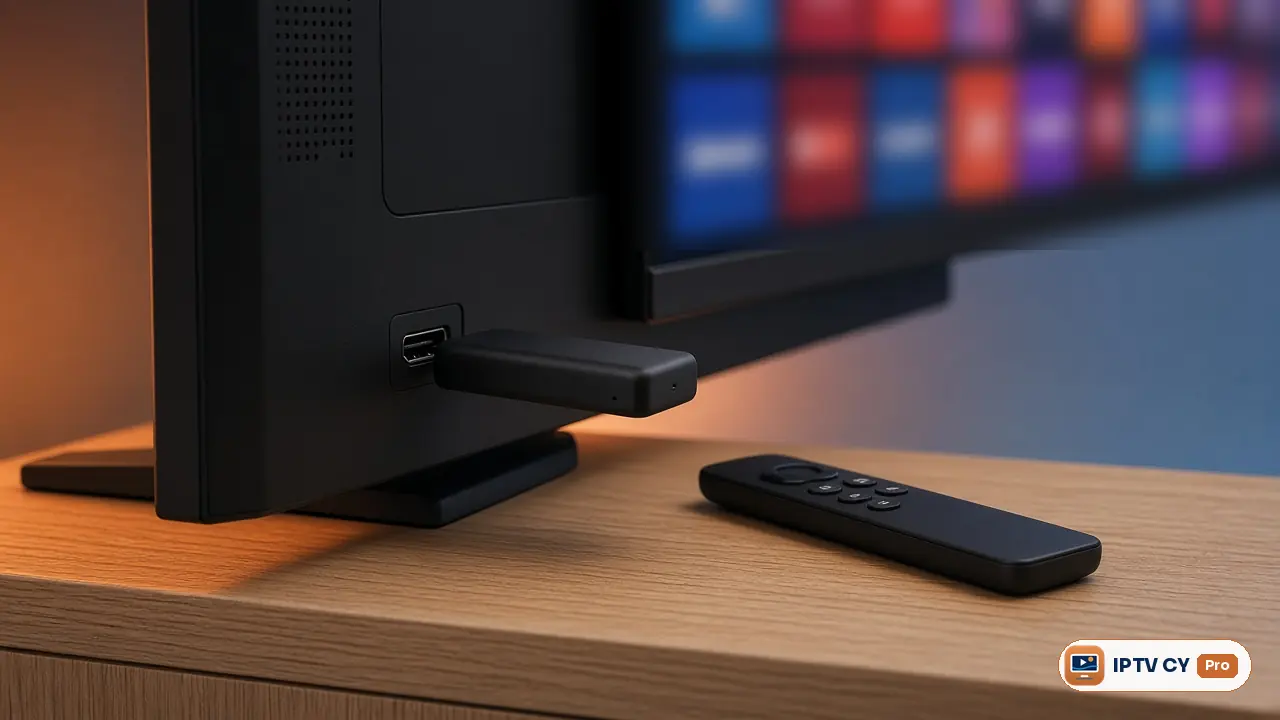
The Fire TV Stick is the most popular IPTV device in Cyprus homes: it is inexpensive, plugs into any TV with an HDMI port and runs the best player apps. This guide takes you from a stick fresh out of the box to live Cypriot channels, with the settings that keep the picture smooth on busy evenings.
On this page
- What you need
- Step 1: Set up the stick and update it
- Step 2: Turn on developer options
- Step 3: Install the Downloader app
- Step 4: Allow Downloader to install apps
- Step 5: Install a player app
- Step 6: Log in
- Step 7: Settings that make a difference
- Step 8: Wi-Fi or Ethernet?
- Step 9: Make the channel list easier
- Common problems and fixes
- Which Fire TV Stick for which TV?
- Need help?
- Keeping your stick healthy
- Updating the player app
What you need
- A Fire TV Stick (Lite, HD, 4K or 4K Max) plugged into the TV and the power supply.
- Your Wi-Fi password, or an Ethernet adapter for the stick.
- Your login from us on WhatsApp.
- Ten to fifteen minutes.
Step 1: Set up the stick and update it
If the stick is new, follow the on-screen setup: language, Wi-Fi and an Amazon account. Then go to Settings > My Fire TV > About and choose Check for updates. Install any updates and let the stick restart. An up-to-date stick runs player apps faster and more reliably.
Step 2: Turn on developer options
On newer Fire TV models, developer options are hidden. To show them:
- Go to Settings > My Fire TV > About.
- Highlight the name of your device (for example "Fire TV Stick 4K Max") and press the select button on the remote seven times.
- A message says you are now a developer. Press back.
You will now see Developer options under My Fire TV.
Step 3: Install the Downloader app
- From the home screen, go to Find > Search.
- Type Downloader and select the app with the orange icon.
- Choose Get or Download and wait for it to install.
- Open Downloader once and allow it to access files if asked.
Step 4: Allow Downloader to install apps
- Go to Settings > My Fire TV > Developer options.
- Choose Install unknown apps.
- Find Downloader and switch it On.
Only allow this for Downloader. You do not need it for any other app.
Step 5: Install a player app
Open Downloader. In the box on the home screen, type the code below and press Go.
Message us on WhatsApp for the current code.
We have not published a Downloader code here yet. Ask us and we reply with the current code and the matching install steps for your Fire TV model.Downloader opens the download page and installs the player app. When asked, choose Install, then Done. Back in Downloader, you can delete the installation file to save space.
Which player? We usually recommend TiviMate on a Fire TV Stick: it has a real channel grid, a fast guide and catch-up, and it handles large channel lists well. IPTV Smarters is a good alternative with a simpler interface and built-in movies and series sections. Our Smarters and TiviMate guide compares them.
Step 6: Log in
In TiviMate:
- Open TiviMate and choose Add playlist.
- Select Xtream Codes.
- Enter the server address, username and password from our message, exactly as written.
- Choose Next. TiviMate loads the channels, then the TV guide.
- Give the playlist a name, such as "Cyprus", and choose Done.
In IPTV Smarters:
- Open the app and accept the terms.
- Choose Login with Xtream Codes API.
- Enter any name, then the username, password and server address.
- Choose Add user. The app loads live TV, movies and series.
Step 7: Settings that make a difference
These settings fix most picture problems on a Fire TV Stick:
- Match frame rate. Go to Settings > Display & Sounds > Display > Match Original Frame Rate and turn it on. Football looks smoother because the TV switches to the channel's own frame rate.
- Video resolution. Leave it on Auto unless your TV has trouble with 4K, then set it to 1080p.
- Turn off data monitoring. Go to Settings > Preferences > Data Monitoring and turn it off, so the stick does not limit video quality.
- Use the HDMI extender that comes in the box. It moves the stick away from the back of the TV, improving Wi-Fi and reducing heat.
- Restart weekly. Hold Select and Play together for five seconds to restart the stick.
Step 8: Wi-Fi or Ethernet?
The Fire TV Stick depends on Wi-Fi, and Wi-Fi is the most common cause of buffering. For the best results:
- Use the 5 GHz network if your router offers one.
- Keep the router within a room or two of the TV, with no thick walls in between.
- For a big TV or a busy household, buy the official Ethernet adapter for your stick model. It plugs into the stick's power port and gives you a wired connection.
Step 9: Make the channel list easier
- In TiviMate, press and hold on a channel to add it to Favourites. Create a favourites group with your everyday Cypriot and Greek channels.
- Hide groups you never watch under Settings > Playlists > Manage groups.
- Set a parental PIN under Settings > Parental control if children use the TV.
Common problems and fixes
"Install blocked" message. Go back to Step 4 and make sure Downloader is allowed to install unknown apps.
The stick says "storage full". Uninstall apps you do not use, and clear the cache of the player app under Settings > Applications > Manage installed applications.
The guide is empty. In TiviMate, go to Settings > EPG and choose Update EPG, then wait a few minutes.
The picture stops every few minutes. Switch to 5 GHz Wi-Fi or an Ethernet adapter, restart the router and the stick, and read the buffering fix guide.
The remote does not work. Replace the batteries, then hold Home for ten seconds to pair the remote again.
"Authorisation failed" or "invalid login". Check the username, password and server address character by character. If your plan has ended, message us to renew.
Which Fire TV Stick for which TV?
| Model | Best for | 4K | Notes |
|---|---|---|---|
| Fire TV Stick Lite | small bedroom TVs | no | basic remote, enough for HD |
| Fire TV Stick HD | HD TVs | no | full remote with TV controls |
| Fire TV Stick 4K | 4K TVs | yes | good all-rounder |
| Fire TV Stick 4K Max | large 4K TVs, busy homes | yes | fastest, best Wi-Fi, most memory |
Our blog post comparing the Fire TV Stick 4K Max and Lite explains the differences in more detail.
Need help?
Send us a photo of your screen on WhatsApp at any step, and we will tell you exactly what to press. Setup help is included with every plan and the free trial.
Keeping your stick healthy
A Fire TV Stick runs best when it has free memory and stays cool. Once a month, open Settings > Applications > Manage installed applications, clear the cache of the player app and uninstall anything you no longer use. Keep the stick on the HDMI extender, away from the hot back panel of the TV, especially in summer. If the stick feels very hot or restarts by itself, unplug it for ten minutes and check that the TV is not in a closed cabinet.
Updating the player app
Apps installed with Downloader do not update through the Amazon Appstore. When a new version is released, the app usually tells you on start-up, or we let customers know on WhatsApp. To update, install the new version the same way you installed the first one; your login and favourites are normally kept. If anything looks wrong after an update, restart the stick before changing any settings.


Plans and prices
Each plan opens every channel and the full on-demand library. Choose the length and the number of devices, then pay once in euro.
1 month · 1 device
€11.99
€11.99 a month
Shortest commitment
- 44,000+ live channels
- 186,000+ movies · 12,000+ series
- Cyprus, Greek, UK, Russian, Israeli, German, sport, international and kids' channels
- HD, FHD and 4K
- EPG TV guide and catch-up
- Smart TV, Fire TV, Android, MAG, Formuler, Apple TV, iPhone, PC
- Stable anti-freeze servers
- Support every day on WhatsApp
Pay by card or PayPal · login sent on WhatsApp
3 months · 1 device
€24.99
€8.33 a month
A full season
- 44,000+ live channels
- 186,000+ movies · 12,000+ series
- Cyprus, Greek, UK, Russian, Israeli, German, sport, international and kids' channels
- HD, FHD and 4K
- EPG TV guide and catch-up
- Smart TV, Fire TV, Android, MAG, Formuler, Apple TV, iPhone, PC
- Stable anti-freeze servers
- Support every day on WhatsApp
Pay by card or PayPal · login sent on WhatsApp
6 months · 1 device
€44.99
€7.49 a month
Half a year sorted
- 44,000+ live channels
- 186,000+ movies · 12,000+ series
- Cyprus, Greek, UK, Russian, Israeli, German, sport, international and kids' channels
- HD, FHD and 4K
- EPG TV guide and catch-up
- Smart TV, Fire TV, Android, MAG, Formuler, Apple TV, iPhone, PC
- Stable anti-freeze servers
- Support every day on WhatsApp
Pay by card or PayPal · login sent on WhatsApp
12 months · 1 device
€59.99
€4.99 a month
Lowest monthly rate
- 44,000+ live channels
- 186,000+ movies · 12,000+ series
- Cyprus, Greek, UK, Russian, Israeli, German, sport, international and kids' channels
- HD, FHD and 4K
- EPG TV guide and catch-up
- Smart TV, Fire TV, Android, MAG, Formuler, Apple TV, iPhone, PC
- Stable anti-freeze servers
- Support every day on WhatsApp
Pay by card or PayPal · login sent on WhatsApp
Streaming on 2 or 3 devices at once?
Same channels and library, more streams at the same time. Tap any price to start that order on WhatsApp.
| Devices | 1 month | 3 months | 6 months | 12 months |
|---|---|---|---|---|
| 1 device | €11.99€11.99 a month | €24.99€8.33 a month | €44.99€7.49 a month | €59.99€4.99 a month |
| 2 devices | €16.99€16.99 a month | €34.99€11.66 a month | €64.99€10.83 a month | €84.99€7.08 a month |
| 3 devices | €21.99€21.99 a month | €44.99€14.99 a month | €84.99€14.16 a month | €109.99€9.16 a month |
All prices are in euro (EUR €) and are paid once. Nothing renews by itself and there is no contract, so you are never charged again unless you decide to extend. Every plan opens the same 44,000+ live channels, 186,000+ movies and 12,000+ series; only the length and the number of devices that can watch at the same time change. Not sure yet? Start with the free 24-hour trial. How the free trial works.
Questions people in Cyprus ask us
Which Fire TV Stick should I buy?
The Fire TV Stick 4K Max is the best choice for most TVs: it is the fastest model, supports 4K and has the best Wi-Fi. The Lite and HD models are fine for HD on a smaller TV. Our blog compares the models in detail.
Why can I not find the player app in the Amazon store?
Many IPTV players are not in the Amazon Appstore. You install them with the Downloader app after allowing apps from unknown sources, as shown in this guide.
Is it safe to allow unknown apps?
It is safe as long as you only install apps you trust. Allow it only for the Downloader app, and do not install modified or unknown apps.
What is the Downloader code?
A short number that opens a download link in the Downloader app. See the box in this guide for the current code, or message us on WhatsApp.
My stick is slow. What can I do?
Clear the cache of the player app, uninstall apps you do not use, restart the stick and connect it with an Ethernet adapter if possible. Older sticks with little memory can struggle with large channel lists.
Can I use a Fire TV Stick in Cyprus if it was bought abroad?
Yes. Sticks bought in the UK, Germany or elsewhere work in Cyprus. You may need to change the language and time zone in the settings.
Can I use a Fire TV Stick on a hotel or holiday-home TV?
Yes, as long as the TV has a free HDMI port and you can connect the stick to the Wi-Fi. Some hotel networks need you to accept terms in a web browser first, which a stick cannot always do; in that case a phone hotspot is a simple workaround.
Do I need an Amazon account?
Yes, the Fire TV Stick needs an Amazon account to set up. A free account is enough; you do not need a paid membership.